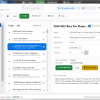
YesUWon Sweepstakes Manager makes entering and tracking sweepstakes simple and organized. You can manage hundreds of entries in one place, get timely reminders, and never lose track of what you’ve entered.
Quick Start
-
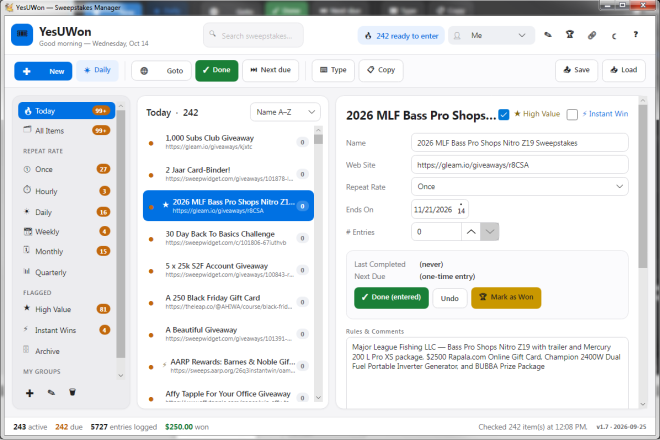
- Click + New and name a sweepstake.
-
- Fill in its Website, Repeat Rate (how often you can re-enter), and an Ends On date if it has one.
-
- Click Goto to open the site, enter the contest, then click Done. YesUWon stamps the time, bumps the entry counter, and schedules the next reminder.
-
- Click Next due to jump to the next item that’s due. The Today group always shows everything that’s ready to enter right now.
Status Icons (in the Items list)
-
- ✓ Done — entered, not yet time to re-enter.
-
- ● Due — time to enter it again (or never entered).
-
 Ends today — last day to get your entry in (shows even if it’s also due).
-
- ✕ Ended — the sweepstake’s end date has passed.
A one-time (Once) entry shows Due until its entry counter is above zero, then Done.
Repeat Rate & Reminders
Repeat Rate sets when an item becomes Due again after you mark it Done: Once, Hourly, Daily, Every 24 Hours, Weekly, Every 7 Days, Monthly, or Quarterly. The Next Due time shows in the detail panel.
-
- Daily resets at the start of the next day (00:01) — enter once per calendar day.
-
- Every 24 Hours waits a full 24 hours from the moment you last entered.
-
- Weekly resets on the next Monday at 00:01 — enter once per calendar week.
-
- Every 7 Days waits a full 7 days from the moment you last entered.
Hourly, Monthly, and Quarterly count from your Last Completed time (plus 1 hour, 1 month, or 3 months).
Once never repeats.
In the sidebar, Every 24 Hours items appear in the Daily group and Every 7 Days items in the Weekly group.
Search, Groups & the Today View
Type in the Search box at the top to instantly filter by name, website, rules, or notes. The sidebar starts with Today (everything due now) and All Items, then a group for each Repeat Rate, then:
-
- and any custom groups you add with the + button.
Each group shows a live badge of how many of its items are due.
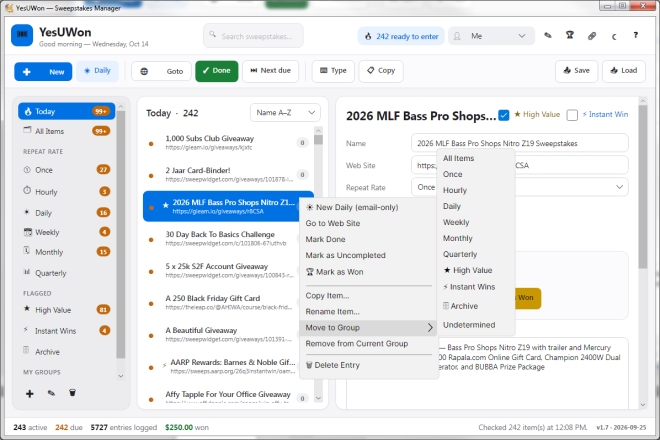
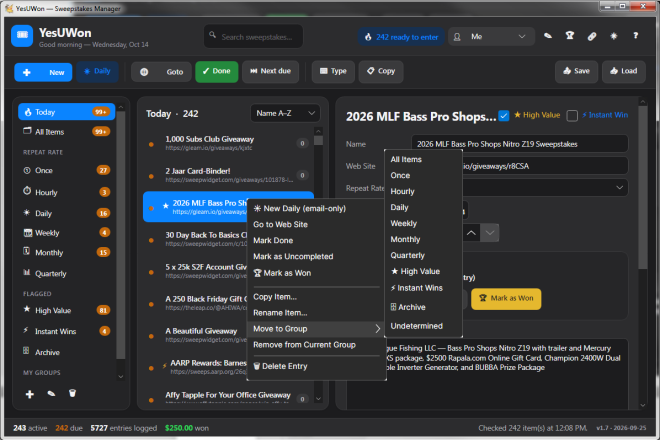
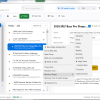
By default an item appears automatically in the group that matches its Repeat Rate. To override that, right-click an item → Move to Group → pick a group — it moves there (it doesn’t make a copy).
Move to ★ High Value or Instant Wins to flag it (same as ticking the boxes). Move to □ Archive to shelve it. Move to All Items to clear the override. Remove from Current Group puts the open group’s item back to its automatic spot.
Archive – Ended Sweepstakes
Sweepstakes in this group have ended. You can still mark your wins here and add them to the Winnings Tracker.
Selecting Several Items at Once
The items list works like Windows Explorer:
-
- Ctrl+click adds or removes single items.
-
- Shift+click selects a range.
-
- Goto, Done, Undo, Move to Group, Remove from Current Group, Mark as Won and Delete then act on EVERY selected item (Delete asks once, showing the count).
Right-clicking a selected item keeps your selection; right-clicking an unselected item selects just that one. The buttons in the detail panel always act only on the single item shown there.
Typeltin — Autofill
The Typeltin box holds the sequence typed into a contest’s form. By default it follows the profile you picked in ‘Autofill as’ — it lists that profile’s fields as {tokens} joined by [tab], and it rebuilds the moment you switch profiles. Example for a profile with name + email:
{name}[tab]{email}
Need something different for one contest? Just edit the box — your edit follows that entry and it stops following profiles. Click Use profile fields to make it follow the profile again.
Type [tab] and [enter] into the string wherever the web form needs a Tab or Enter press. The Options ‘Default Type template’ is applied to every entry you create with + New (leave it empty to have new entries follow the selected profile instead).
Type into form (Windows): arms a short countdown — click into the first form field on the web page, and YesUWon types the whole string for you, pressing Tab/Enter where you marked them. Press Esc to cancel.
Copy resolved copies the finished text to the clipboard so you can paste it (this is also what the Type button does on macOS/Linux, where keystroke injection isn’t available).
Profiles (set it once, never retype)
Click Profiles to set up one or more autofill profiles — each holds a person’s name, email, address, etc. Fill these in once. Pick who you’re entering as with the ‘Autofill as’ dropdown — the Typeltin box rebuilds from that profile’s fields, and any custom groups you add with the + % □ buttons. Each group shows a live badge of how many of its items are due.
High Value, Instant Wins & Winnings
Tick ★ High Value or Instant Win on an entry (or Move it to those groups) to flag it — it then shows under the matching group. When you win, click Mark as Won (or open Winnings) to log the prize and its value. Winnings totals your estimated take and can save a Report or export a CSV spreadsheet file. Your total winnings show in the status bar at the bottom.
Winnings Tracker
After you mark a sweepstakes as “Won,” it will appear in your Winnings Tracker. Open the tracker to set the prize value you won.
Sharing Data Files
-
- Save writes the items currently listed (the open group, or your search results) to a CSV you can share.
-
- Load imports a CSV: items you already have (same website or name) are skipped — remaining items are added automatically, with their items placed in them. Rows without a group land in the group that’s open. You can Reset Entry Counters afterwards from Options.
Appearance & Options
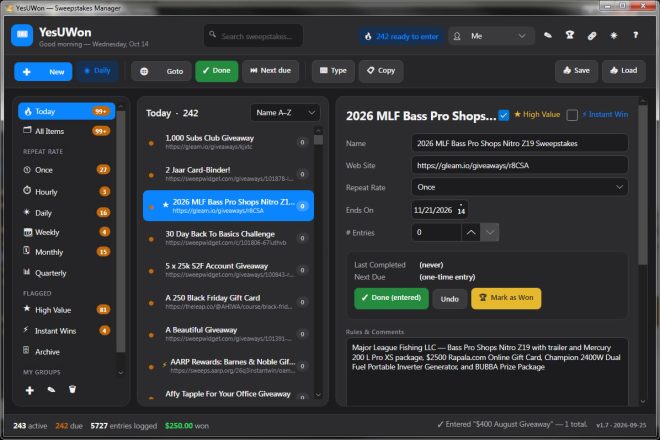
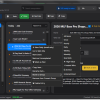
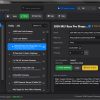
Use the Sun/Moon button in the header (or ‘Dark appearance’ in Options) to switch between light and dark.
Options also has:
- Auto-save every 15 minutes
- Auto-check for due items every 15 minutes (handy for Hourly entries)
- Slow down the Type function (for picky forms)
- Always on top
- Dark appearance
- Show scroll bars full width
- Type arm delay
- Default Type template
- Browser path
- Reset Entry Counters (this group)
Where Your Data Lives
Everything is plain CSV in the app’s data folder — the exact path is shown in the bottom-right corner of the status bar (Windows: AppDataRoamingYesUwon · Mac: Library/Application Support/YesUwon). Files: entries.csv (with an entries.bak backup), groups.csv, profiles.csv, winnings.csv, plus settings.json. Your edits save automatically.
Keyboard Shortcuts
-
- F1 = Help F3 = Find Esc = cancel an in-progress autofill